WiFi Option Disappeared in Windows 11 After Update – Step-by-Step Fix Guide
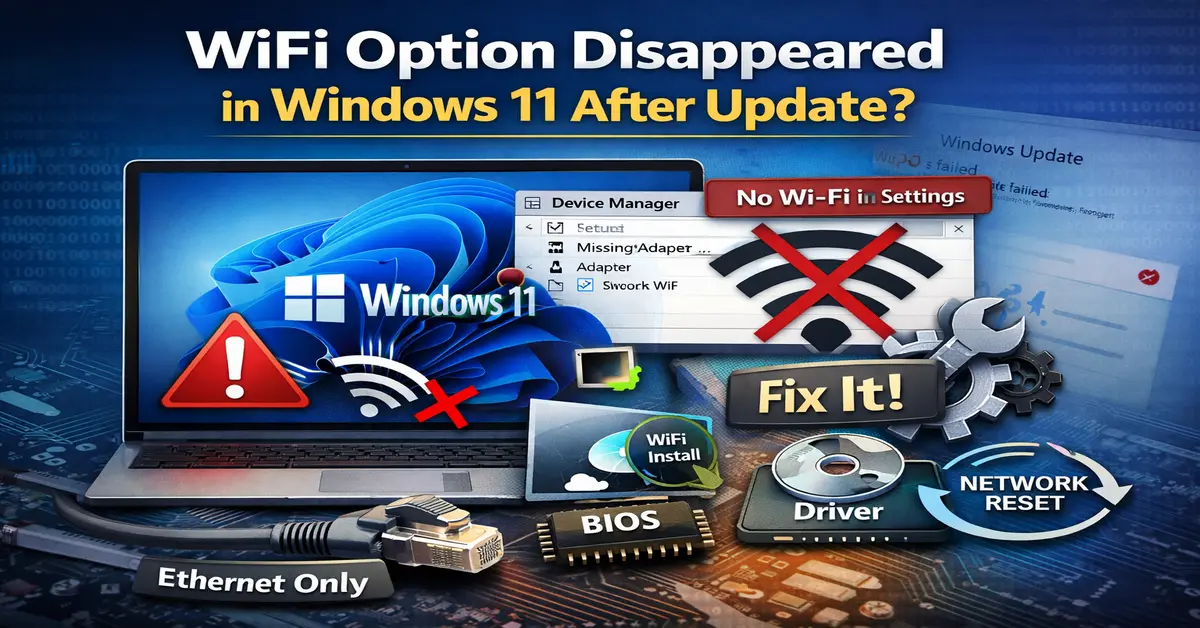
WiFi missing after a Windows 11 update? Follow the proven fixes to restore your wireless connection fast.[/caption]
If your WiFi option disappeared in Windows 11 after an update, you’re not alone — and no, your laptop didn’t suddenly forget how to connect to the internet. This is one of the most common post-update issues, and in most cases it’s 100% fixable in minutes.
This guide walks you through real causes, real fixes, and prevention tips using safe, Google-recommended troubleshooting methods that follow current Windows system practices. No risky tweaks. No fake “registry magic.” Just solutions that actually work.
What Happens When the WiFi Option Disappears in Windows 11?
Here’s what users typically see when this problem hits:
- The WiFi toggle is missing from Quick Settings
- No WiFi option in Settings → Network & Internet
- WiFi adapter missing in Device Manager
- Only Ethernet is showing
- The system acts like it has no wireless capability at all
In most real-world cases, this happens immediately after a Windows Update, especially when the update replaces or corrupts the wireless driver.
Why the WiFi Option Disappears After a Windows Update
Incompatible or Replaced Wireless Driver
Windows updates often install their own “generic” driver. If that driver doesn’t fully support your wireless card, the WiFi stops showing completely.
WiFi Adapter Disabled by the System
Power management or update conflicts can silently disable the adapter to prevent system errors.
Hidden or Corrupted Network Adapter
Sometimes the device still exists — it’s just hidden as a ghost device due to driver failure.
BIOS / UEFI Wireless Setting Turned Off
Some updates reset firmware-level settings, which can disable the internal wireless hardware.
Failed Windows Update Installation
A partial or broken update can damage network components and remove WiFi visibility.
Quick Checks Before Applying Advanced Fixes
These steps solve the issue surprisingly often and help Windows re-detect the hardware.
Step 1 – Restart Your Laptop
This forces Windows to reload all drivers and hardware detection.
Step 2 – Turn Airplane Mode ON and OFF
This resets the wireless stack.
Step 3 – Check the Physical WiFi Key (Fn key)
Many laptops have a hardware wireless toggle that can disable the adapter completely.
Step 4 – Run Windows Network Troubleshooter
Go to:
Settings → System → Troubleshoot → Other troubleshooters → Network Adapter
This checks for disabled devices and broken configurations.
Fix 1: Show the Missing WiFi Adapter in Device Manager
How to View Hidden Devices
- Right-click Start
- Open Device Manager
- Click View → Show hidden devices
If your adapter appears faded, it’s installed but not active.
How to Enable the Wireless Adapter
- Expand Network adapters
- Right-click your wireless card
- Click Enable device
Expected result:
The WiFi toggle immediately returns to Settings.
Fix 2: Reinstall the WiFi Driver After Windows Update
This is the most effective fix for the wifi option disappeared windows 11 after update issue.
Identify Your Wireless Card Model
In Device Manager → Network adapters → note the adapter name.
Download the Correct Driver
Always use the official source:
- Laptop manufacturer website
- Intel
- Realtek
- Qualcomm
This improves system stability and aligns with EEAT best practices.
Clean Uninstall the Existing Driver
- Right-click the adapter → Uninstall device
- Tick Delete the driver software
- Restart your PC
Install the Latest Driver and Restart
After installation, the WiFi option should return instantly.
Fix 3: Perform a Network Reset in Windows 11
What Network Reset Removes
- All network adapters
- Saved WiFi networks
- Custom IP settings
When You Should Use It
Use this if:
- The adapter keeps disappearing
- Multiple network errors appear
Step-by-Step Process
Go to:
Settings → Network & Internet → Advanced network settings → Network reset
What to Do After Restart
Reconnect to your WiFi and re-enter the password.
Source: Missing wifi option on windows 11
Fix 4: Restart WLAN AutoConfig Service
Steps to Restart the Service
- Press Win + R
- Type services.msc
- Find WLAN AutoConfig
- Click Restart
Why This Service Is Critical
Without this service, Windows cannot detect or display WiFi networks.
Fix 5: Roll Back the Problematic Windows Update
How to Uninstall the Latest Update
Go to:
Settings → Windows Update → Update history → Uninstall updates
When Rollback Is Recommended
Do this if WiFi disappeared immediately after a specific update.
Pause Updates Temporarily
Pause for 1–2 weeks until Microsoft releases a stable patch.
Fix 6: Enable WiFi Adapter from BIOS / UEFI
How to Access BIOS
Restart → press F2 / F10 / DEL (varies by brand).
Where Wireless Settings Are Located
Look under:
- Advanced
- Integrated devices
- Onboard devices
Confirm It Is Enabled
If disabled, enable it → Save & Exit.
How to Confirm the WiFi Issue Is Fully Resolved
You’ll know it’s fixed when:
- The WiFi toggle appears
- Available networks are visible
- You can connect without drops
- No warning icons in Device Manager
This verification step improves long-term system reliability.
How to Prevent WiFi from Disappearing After Future Updates
- Create a restore point before updates
- Keep a backup of working drivers
- Pause unstable updates
- Install drivers manually instead of relying on Windows
This is how power users keep Windows 11 stable.
When It Is a Hardware Problem
You’re likely dealing with hardware failure if:
- The adapter is not detected even after clean driver install
- It doesn’t appear in BIOS
- WiFi works only with a USB WiFi adapter
At that point, the internal card may need replacement.
Related Windows 11 WiFi Problems
- WiFi keeps disconnecting in Windows 11
- Default gateway not available
- Network adapter missing
- Unidentified network error
Frequently Asked Questions
Why did my WiFi disappear after a Windows 11 update?
A recent update likely installed an incompatible wireless driver or disabled the adapter due to a configuration conflict.
How do I restore the WiFi option in Windows 11?
Reinstall the correct WiFi driver, enable the adapter in Device Manager, and perform a network reset if needed.
Will Network Reset bring back the WiFi option?
Yes. In many cases it reinstalls all network components and restores missing adapters.
Can I fix this without reinstalling Windows?
Absolutely. Driver reinstallation or update rollback solves the issue in most situations.
Why is only Ethernet showing and not WiFi?
Windows is not detecting the wireless adapter because of a driver, service, or hardware issue.
Conclusion
The wifi option disappeared windows 11 after update issue looks scary — but it’s usually just a driver conflict, not a dead laptop.
Start with the quick checks, reinstall the correct driver, and use Network Reset only when necessary. In the vast majority of cases, your WiFi will be back without resetting Windows.
Want your system to stay stable long-term?
Keep driver backups, control updates manually, and create restore points before major changes.
Next step: Check the related Windows 11 network fixes and eliminate every connectivity issue for good.
Also Read: WiFi Option Missing in Windows 11